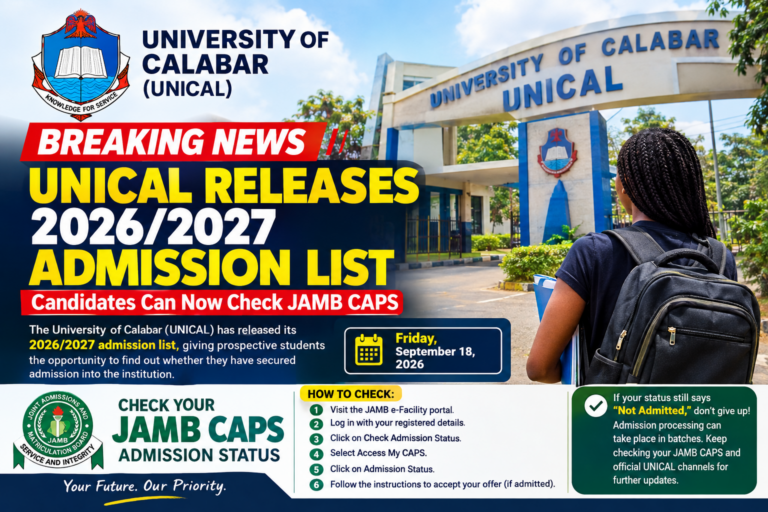

Your school might paste your name on its campus noticeboard or publish it on its official website, but that admission remains invalid until it appears on your Central Admissions Processing System. The Joint Admissions and Matriculation Board controls the final approval of all admissions.
Many candidates experience deep anxiety because they see their names on the school list while their central portal reads “Not Admitted.” Learning how to navigate this system ensures you do not lose your slot.
Step by Step Guide to Accessing Your Profile on Mobile Devices
Most students use smartphones to track their progress, but the central portal often shows a completely blank page if you do not configure your browser correctly. Follow these exact steps to view your profile clearly on your phone.
Open the Google Chrome browser on your mobile device.
Visit the official facility portal at efacility.jamb.gov.ng.
Enter the email address and password you used during your UTME registration.
Click the login button to open your dashboard.
Locate and click on the “Check Admission Status” tab.
Select your exam year and enter your registration number in the provided field.
Click on the “Access my CAPS” button.
Fixing the Common Welcome Blank Page Error
If you click “Access my CAPS” on a mobile phone, you will likely see a white screen that just says “Welcome.” This happens because the page is designed strictly for wide computer screens.
To fix this immediately, tap the three vertical dots at the top right corner of your Google Chrome browser. Scroll down the options menu and check the box that says “Desktop Site”. The page will reload instantly, revealing the full navigation menu on the left side of your screen.
Understanding the Different Status Messages on Your Dashboard
Once you click on the “Admission Status” tab within the central system, you will see one of three messages. You must know what each message means so you can take the right action.
Not Admitted: This means your school has not sent your name to the central system yet, or your department has not processed its first-batch list. Do not panic; checking regularly is key.
Admission in Progress: This is excellent news. It means the university has selected you, and the central system is currently validating your documents. Your official offer will appear within a few days.
Congratulation You Have Been Offered Admission: This means your journey is successful. You will see two prominent buttons below the message: “Accept Admission” and “Reject Admission”.
The Right Time to Click Accept or Reject
Once you see an official offer, click the accept button to cement your slot. Never click accept if the system offers you a course you absolutely do not want to study, especially if you plan to try for a better option through a supplementary list or another school.
Once you click accept, your profile locks up, and no other institution can offer you admission for the 2026 academic cycle. After accepting, you can proceed to print your official admission letter and your original result slip.